With complete Chrome extension support added into Vivaldi for Android, the browser’s advantage over the competition is growing even greater.
When Chrome extension support for Android first arrived in Vivaldi, it wasn’t immediately obvious which extensions would actually be useful on mobile. Most desktop extensions don’t translate well to a phone environment. But after careful consideration, it turns out some Chrome extensions work incredibly well on Android and add a lot of genuine value to the mobile web experience.
This is the first of a two-part collection. Below are five Chrome extensions you can add to Vivaldi to save yourself steps and bring a welcome efficiency boost to your Android web work. A follow-up collection will cover another set of extensions that improve the internet itself in some truly intriguing ways.
A Quick Primer on Android Chrome Extension Installation
Before getting into the extensions themselves: you’ll need the latest version of the Vivaldi Android app on your device. Then either tap the puzzle-shaped extensions icon in the toolbar at the top of the screen, or tap the “V”-shaped main menu icon in the upper-right corner and select “Extensions” from there.
Either way, you’ll see an option to “Discover more extensions.” That takes you to the Chrome Web Store, where you can search or browse all available extensions and install anything with a couple of quick taps.
Direct links to each recommended extension are provided below, so you can tap to open them in Vivaldi on your phone and install directly from there.
The Vivaldi Extensions menu is also where you manage any installed extensions going forward. Every installed extension appears there, and you can deactivate or uninstall anything, as well as pin its icon to your browser toolbar for easy ongoing access.
Chrome Android Extension #1: The Cookie Request Crumbler
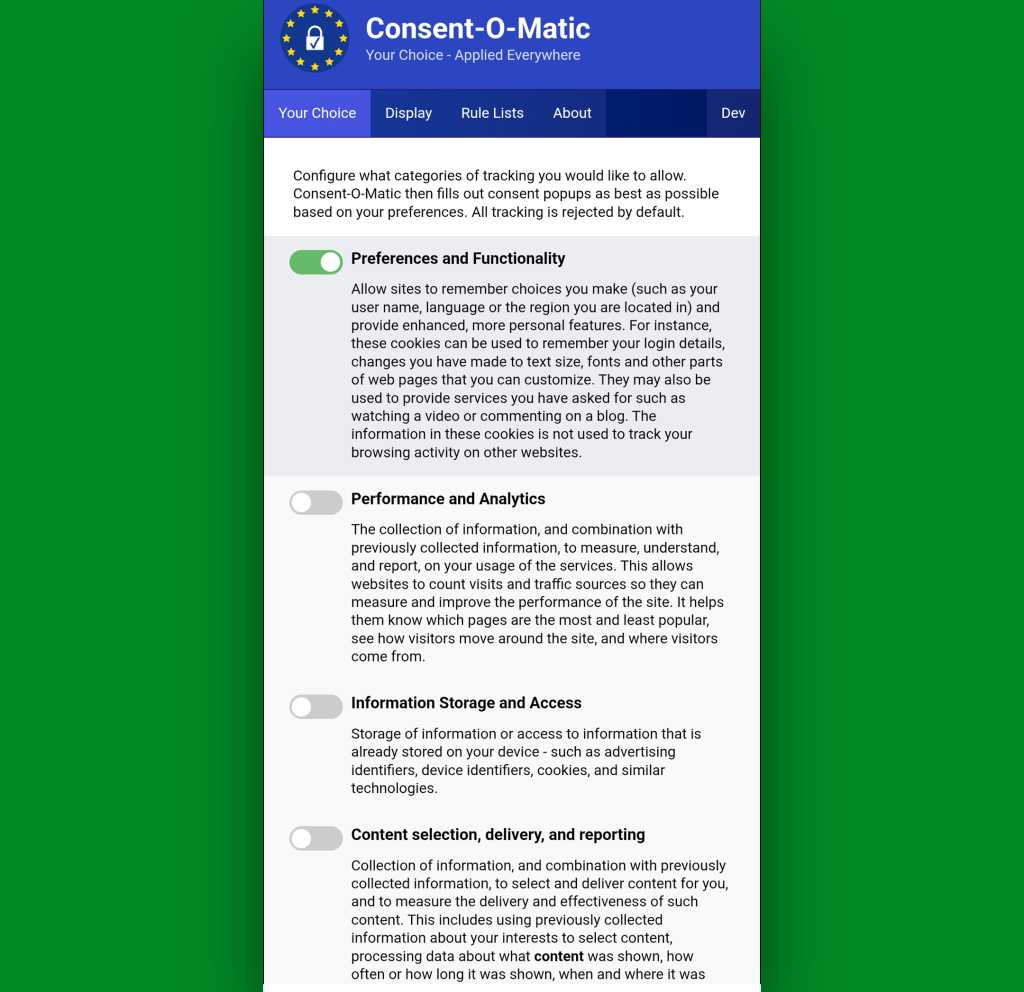
The first extension worth installing is one you’ll never need to open or actively think about once it’s set up. Consent-o-Matic works silently in the background to automatically handle cookie preference prompts that pop up around the web — answering them according to your preferences without ever blocking your view or interrupting your work.
The setup is simple: install it, open its options page once to specify which cookies you do and don’t want to allow, and you’re done. From that point on, it handles every cookie prompt automatically based on your settings.
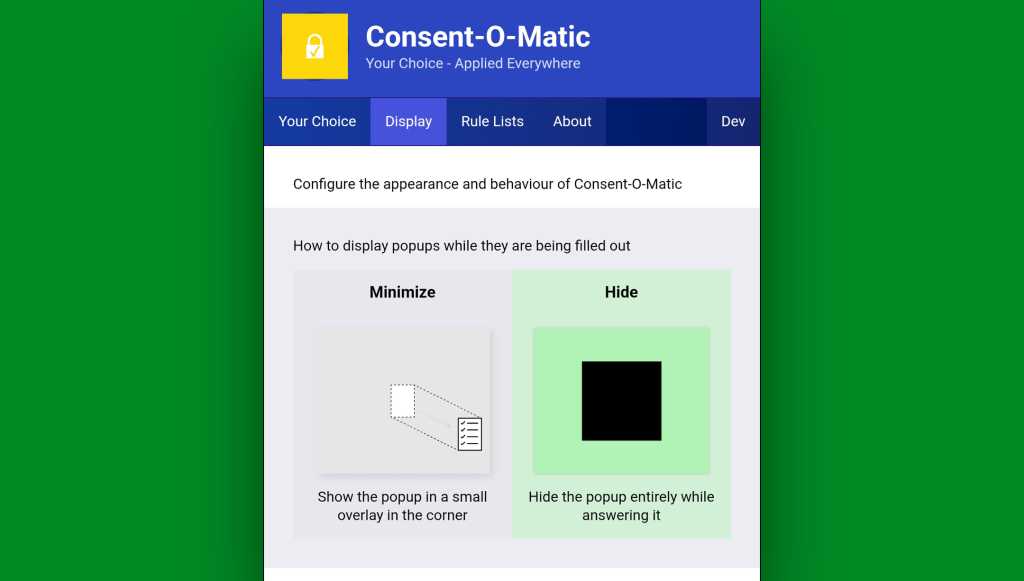
One option worth checking during initial setup is in the “Display” tab. By default, Consent-o-Matic shows a small overlay in the corner of the screen whenever it handles a prompt. You can disable that entirely and make the whole process completely invisible.
Chrome Android Extension #2: 404 No More
Next is the official Chrome extension for the Wayback Machine at the Internet Archive.
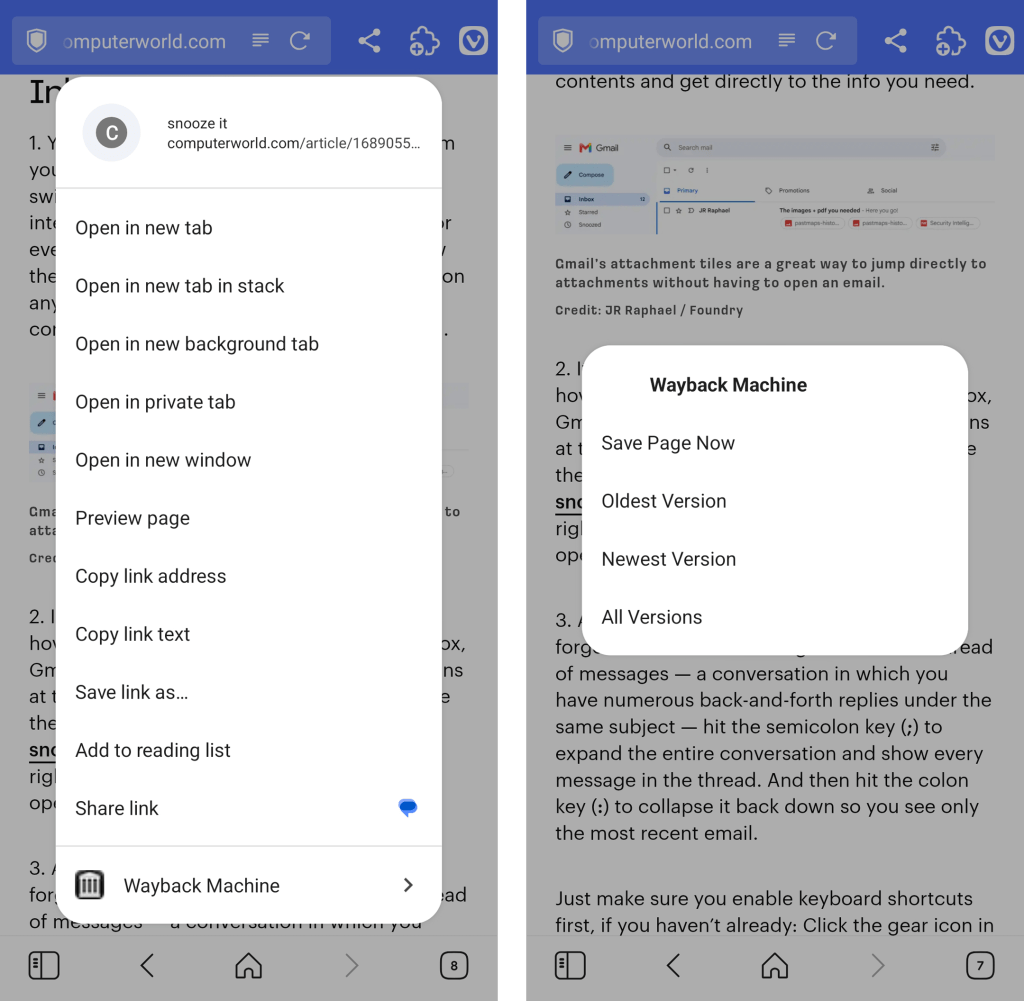
With this extension active in your Android browser, any time you land on a page that’s no longer online or temporarily unavailable, you’ll see an offer to visit the page’s most recent cached version. You can also call the extension up on demand to search for older saved versions of any page — either by pinning its icon to your Vivaldi toolbar or by long-pressing a link within any page to reveal its menu of options.
Chrome Android Extension #3: A Background Open Shortcut
When browsing the web, opening links to read later is a constant habit — and it typically requires long-pressing a link and hunting for the option to open it in a background tab. The extension DoubleClicker makes that action much faster.
Install DoubleClicker in Vivaldi for Android and that’s all there is to it. From that moment on, simply double-tap any link on any page and it opens instantly as a background tab — waiting for when you want it, with no interruption to your current workflow.
Chrome Android Extension #4: Hands-Free Scrolling
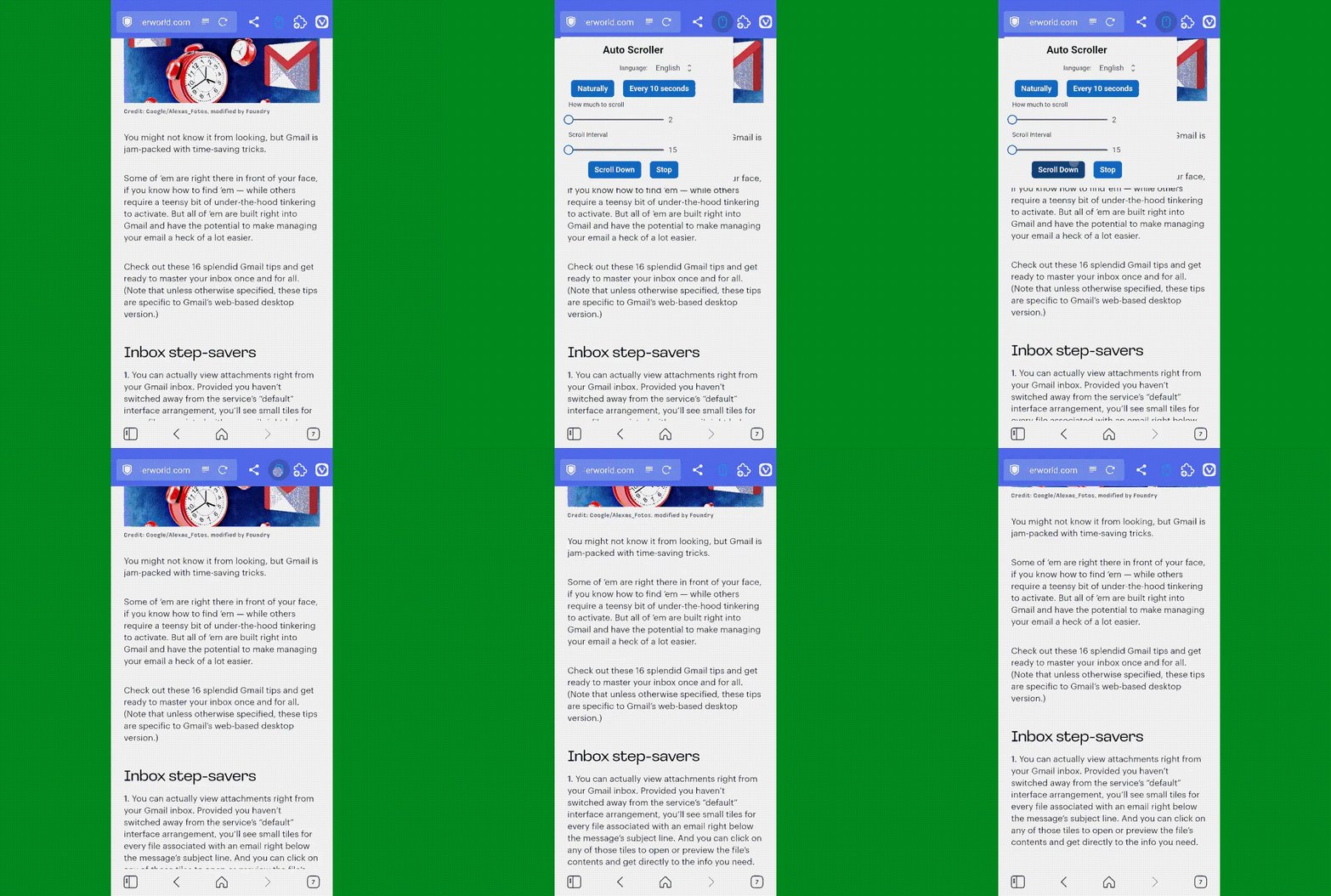
For reading-heavy sessions, Auto Scroll Extension is worth keeping in mind. As its name suggests, it lets you set a scrolling speed of your choice and then tap its icon — which works best pinned to your toolbar — to automatically scroll the page for you, so you can keep reading without lifting a finger.
These five extensions represent just the beginning of what’s possible now that Vivaldi brings full Chrome extension support to Android. Whether you’re managing cookie prompts, rescuing dead links, or streamlining how you open and read content, each one delivers a tangible improvement to everyday mobile browsing.